¶ «Map» section in MyTaxiCRM
⚠️ Please note: this feature is in early release and is constantly being refined, so minor technical difficulties may occasionally occur. It is also worth noting that other useful elements & indicators (such as integrations' statuses, details from GPS devices, etc.) will soon be added to the map – our team is working to give you another great tool for managing your vehicle fleet business!
Current capabilities of the new functionality in the β-stage:
- The frequency of page refreshes may vary.
- It is recommended to use it only for quick visual tracking of the location of your fleet vehicles at this point.
¶ What kind of functionality is that?
Currently, it is a simple live map to see your fleet’s current locations at a glance and to quickly find a car by their registrational plates (numberplates). Details are also available for the selected car ⮂ driver relationship (status from Schedule & Handover Act).
¶ Where to find «Map» section?
In your MyTaxiCRM user account → switch to the specific fleet level → in the left side menu, go to the 🗺️ Map button.
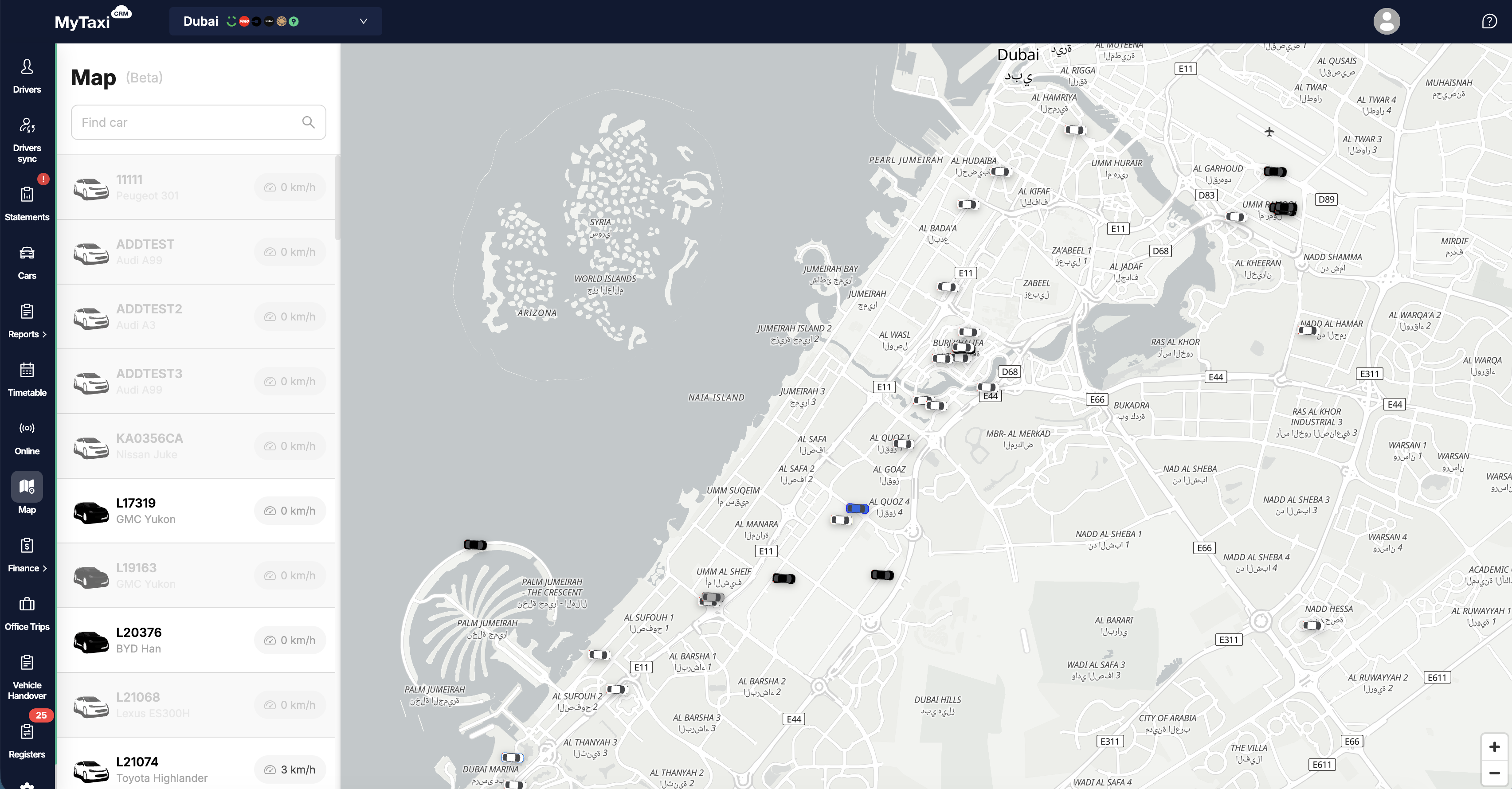
¶ What is displayed here?
- Search field: Find car 🔍 – type in vehicle's numberplate here to filter.
- Car list (left panel) – vehicle make (brand) & model, its registration number, and current speed (in km/h).
- Dynamic map canvas (right panel) – icons of cars according to their current location; the selected one is highlighted.
- Zoom control buttons in the lower-right corner.
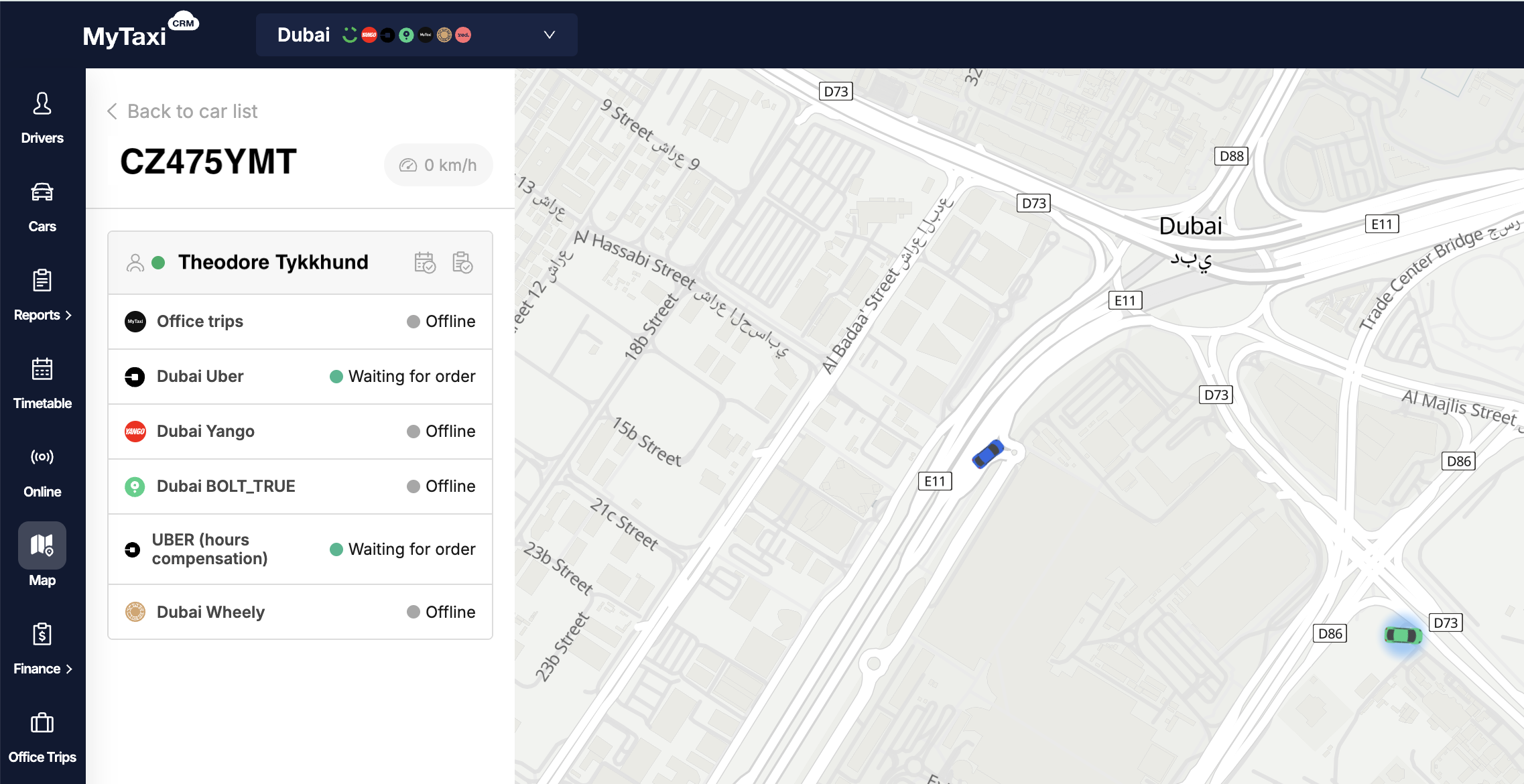
- Added driver details to the map. From now on, when you click on a car in the side panel, details about the driver assigned to the selected vehicle according to the Schedule and the latest Handover Act will be displayed.
- The list of vehicles now only displays those for which GPS integrations are configured and active (corresponding hints have also been added).
- «Online» status indication added for connected integrations (ride-hailing platforms and services alike).
- When you click on a specific car, info about the current driver is displayed in a new redesign.
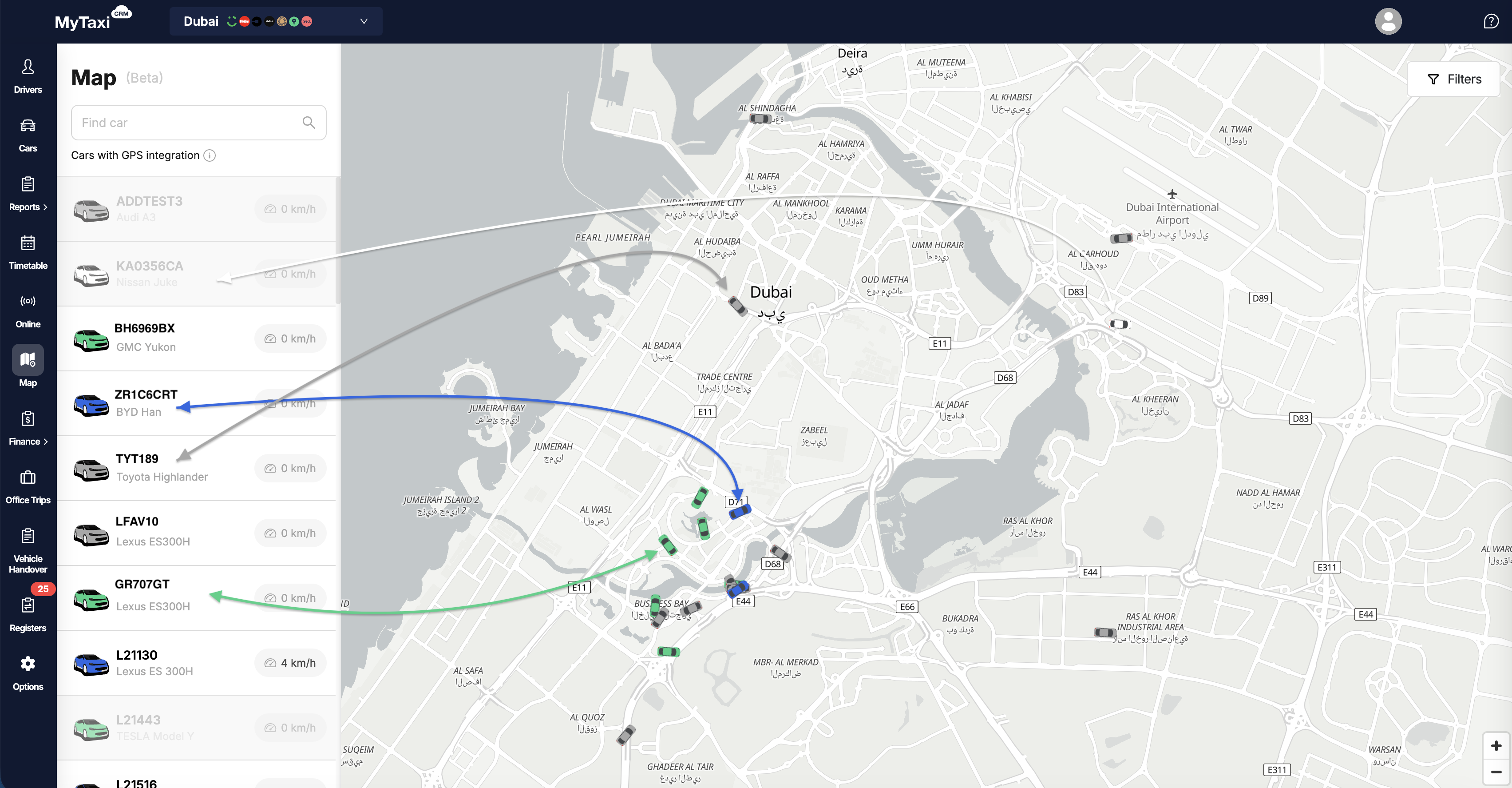
- 🆕 Color indication of vehicle statuses has been added, allowing you to instantly assess their occupancy and availability on the map itself:
- Blue car – the driver is directly fulfilling an order from one of the integrations or Office Trips;
- Green car – has an assigned driver who is waiting for an incoming request to carry out the trip;
- White car – has an assigned driver according to Timetable or Handover Act, but is not active (not waiting for orders, not online in the relevant integration or Office Trips apps);
- Gray car – has no assigned driver at all.
👉 If the same vehicle is in the process of executing an order in one of the integrations and is awaiting requests in the other(s) – its corresponding icon on the map will be blue, as this status has a higher priority (in this case, over green).
- 🆕 Displaying vehicle makes (brands) & models: the sidebar now includes the model/make of a specific car, in addition to its license numberplate;
- 🆕 Added automatic map zoom function: the display area will automatically adapts to all or only filtered cars so that they fit within the frame of a single window.
¶ Current section limitations (β-stage)
- Refresh rate may vary, small delays are possible.
- Map accuracy depends on the vehicle’s GPS device connection & integration.